Setting up
Monitor height, distance and glare: a 30-minute desk setup
Six steps, 30 minutes, in the order that stops you redoing them. Chair first, then the screen to OSHA's published distances and angles.
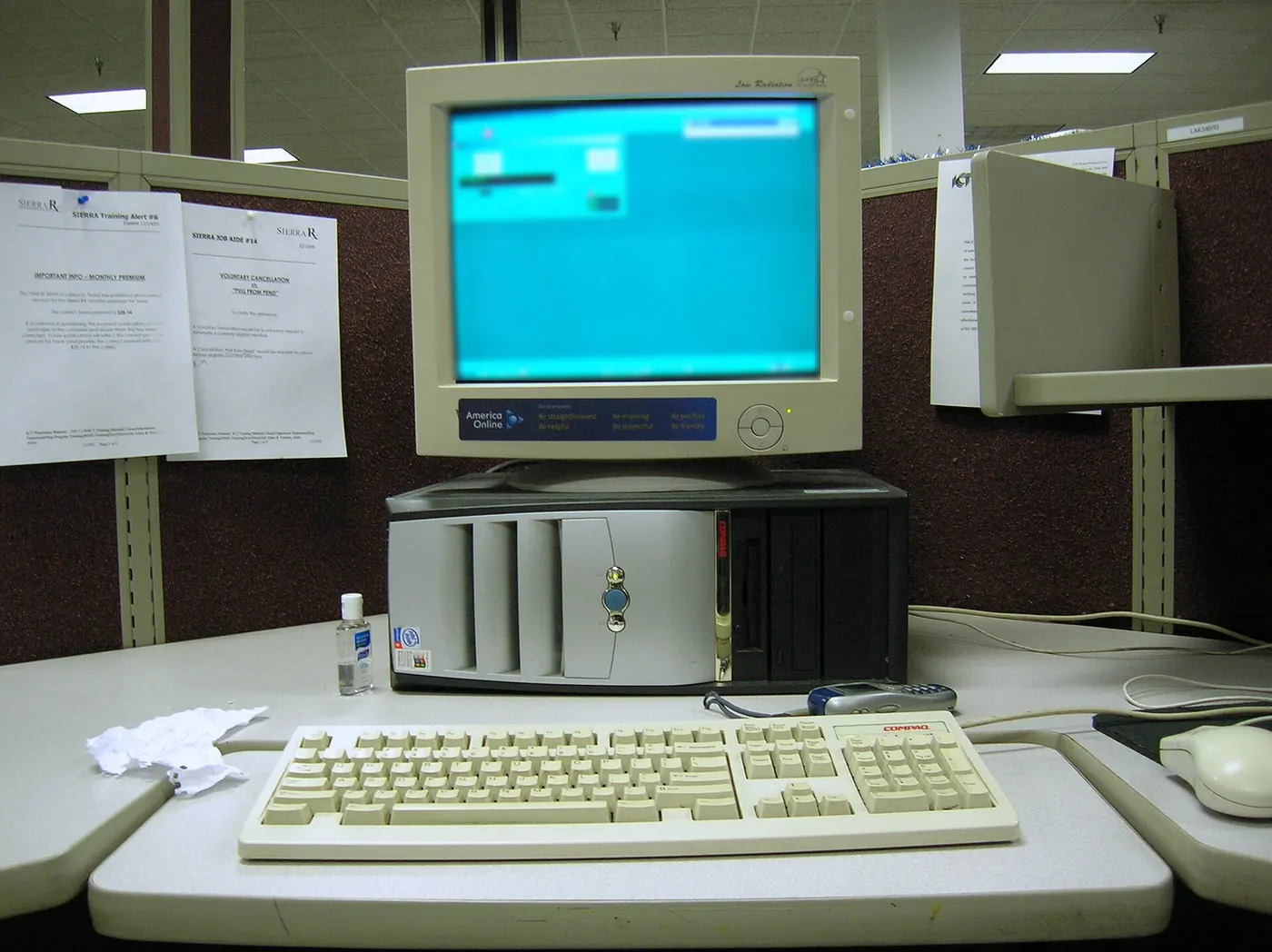
Almost every uncomfortable desk is set up in the wrong order. The monitor gets adjusted first because it is the thing you are looking at, then the chair is changed to suit it, and the result is a screen at a good height for a posture nobody would choose.
The order that works is the reverse: feet, then chair, then keyboard surface, then screen, then the window. This guide runs through it with the numbers OSHA publishes, and with a minute budget for each step so the whole thing fits in half an hour.
Start with the chair, not the screen
OSHA describes the neutral positions to aim for: hands, wrists and forearms straight and roughly parallel to the floor, elbows close to the body and bent between 90 and 120 degrees, the back fully supported with lumbar support, thighs and hips supported and generally parallel to the floor, and knees about the same height as the hips with the feet slightly forward.
Almost all of that is set by seat height and seat pan depth, which is why the chair comes first. Raise the seat until your forearms are level with the keyboard surface. If your feet leave the floor at that height, the desk is too high and a footrest is the fix, not a lower chair.
OSHA also lists four reference postures rather than one, including a reclined position with the torso 105 to 120 degrees from the thighs, and emphasises changing working position frequently through the day. A setup that only works in one posture is a setup you will fidget out of within an hour.
- Raise the seat until your forearms are level with the keyboard surface
- Check that your feet are flat on the floor, adding a footrest if they are not
- Set the lumbar support to meet the small of your back
- Drop the armrests until your shoulders are relaxed with the forearms supported
- Confirm you can recline without the screen leaving your view
Then the screen, to the published numbers
OSHA's preferred viewing distance is between 20 and 40 inches from the eye to the front surface of the screen. The top of the monitor should be at or slightly below eye level, and the centre of the screen should normally sit 15 to 20 degrees below horizontal eye level. No part of the display should require a downward viewing angle greater than 60 degrees.
Three of those four are set by the stand or arm. The fourth, distance, is set by desk depth, and a 24-inch desk against a wall is what limits most home setups. If the screen cannot get 20 inches away, pulling the desk two inches off the wall is cheaper than any monitor purchase.
Tilt is the adjustment people get backwards. OSHA's guidance is to tilt the monitor so it is perpendicular to your line of sight, usually no more than 10 to 20 degrees, and notes that tilting it back can pick up glare from ceiling lighting.
| Setting | OSHA figure | What you adjust |
|---|---|---|
| Viewing distance | 20 to 40 inches, eye to screen front | Desk depth and how far back the stand sits |
| Top of screen | At or slightly below eye level | Stand height, monitor arm, or a riser |
| Screen centre | 15 to 20 degrees below horizontal eye level | Follows from the top-edge setting |
| Maximum downward angle | Never greater than 60 degrees | Catches screens placed far too low |
Set the top edge first and the centre angle follows from it. The 60-degree bound is the one that rules out a laptop screen flat on a desk.
Glare is geometry, not a screen setting
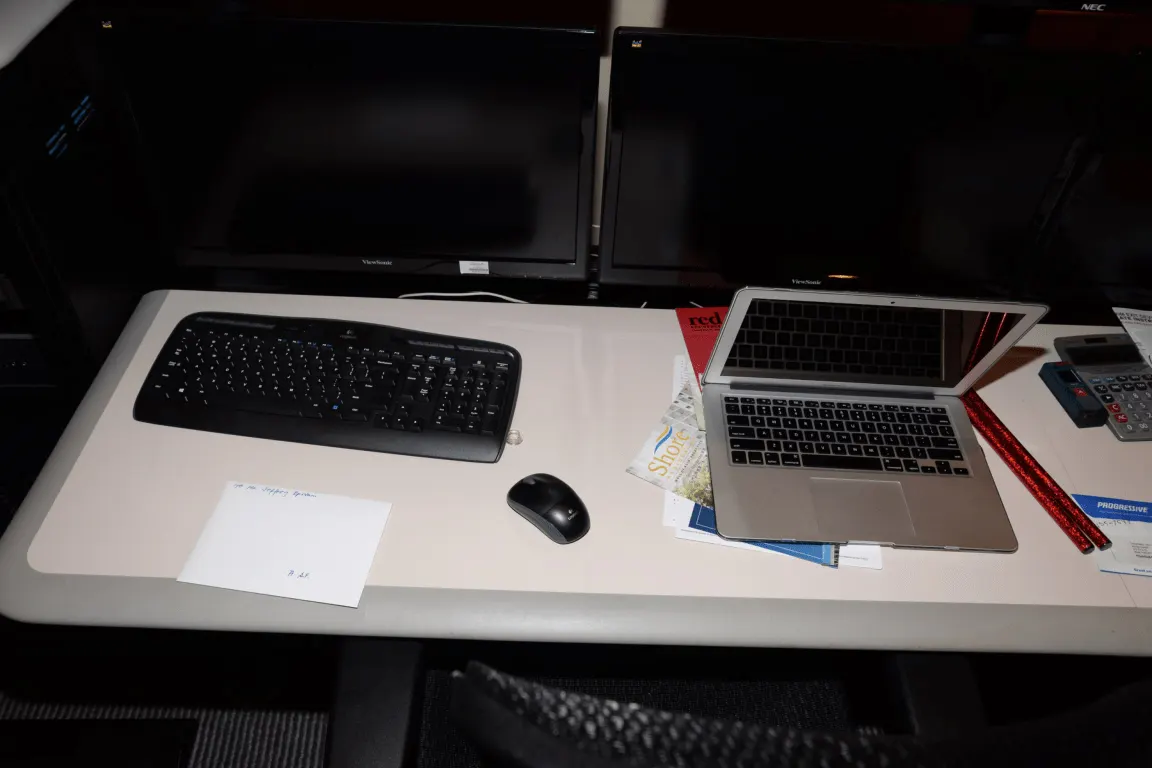
OSHA's glare advice is positional before it is technical: place the monitor perpendicular to a window, and tilt the screen perpendicular to your line of sight rather than leaning it back. A screen facing a window picks up the view as a reflection; a screen with a window directly behind it makes your eyes fight the brightness difference all day.
The arrangement that works in most rooms is the window to the side of the screen rather than in front of or behind it. Where a room gives no choice, a blind costs an example $40 and does more than any anti-glare film.
Ceiling lighting is the second source, and it is the one people miss because it does not look like glare. If tilting the screen back produces a bright band across the top of the display, the light above you is in the reflection path and the fix is to stop tilting back.
- Monitor perpendicular to the window, not facing it or backed onto it
- Screen tilted no more than 10 to 20 degrees, perpendicular to your line of sight
- A bright band across the top of the screen means ceiling light in the reflection path
- A blind at an example $40 beats a film on the screen in almost every room
A laptop is two devices pretending to be one
A laptop cannot satisfy the screen height rule and the elbow rule at once, because the screen and the keyboard are fixed together. Raise it so the screen is right and your wrists climb; put it flat so your wrists are right and the screen is far below the 60-degree bound.
The resolution is to split it: the laptop on a riser or a stack of books at screen height, and a separate keyboard and mouse at elbow height. An example external keyboard and mouse together are about $40, which is the cheapest meaningful change in this entire guide.
If you are already adding an external keyboard, a second screen becomes optional rather than necessary. The laptop display at the correct height is a usable primary screen, and the riser costs an example $25.
Thirty minutes, in order
The sequence below is timed so that nothing has to be redone. Each step depends only on the ones before it, which is why doing the screen before the chair wastes the work.
Write the final settings down at the end. Seat height, lumbar height, monitor height and screen distance take 2 minutes to record and save the entire 30 minutes the next time someone else uses the desk or the chair is moved.
Then change position during the day rather than holding the one you just set. OSHA's guidance is explicit that the goal is frequent change of working position, including standing and walking periodically, rather than a single ideal posture held for 8 hours.
| Step | Minutes | What you are setting |
|---|---|---|
| Clear the desk and take the four measurements | 5 | Elbow height, knee height, seat depth, eye distance |
| Set chair height, pan depth and lumbar | 5 | Feet flat, thighs level, back supported |
| Set the keyboard surface and armrests | 5 | Forearms level, elbows 90 to 120 degrees |
| Set monitor distance, height and tilt | 8 | 20 to 40 inches, top at eye level, tilt 10 to 20 degrees |
| Deal with the window and the ceiling light | 5 | Screen perpendicular to the window, no bright band |
| Write the settings down | 2 | Everything above, on one card in a drawer |
The six steps total 30 minutes. The last one is the only one that stops the other 28 from being repeated.
Before you buy
- Do the chair before the screen, every time
- Add a footrest if your feet leave the floor once the forearms are level
- Set the top of the monitor at or just below eye level before touching the tilt
- Measure the eye-to-screen distance and keep it between 20 and 40 inches
- Turn the screen perpendicular to the nearest window
- Limit the screen tilt to 10 to 20 degrees and check for a bright band across the top
- Add an external keyboard and mouse to any laptop used for more than an hour a day
- Write the final settings on a card and leave it in the desk drawer
Questions readers ask
- Should the top of the monitor be at eye level or above it?
- At or slightly below, on OSHA's published guidance, with the centre of the screen 15 to 20 degrees under horizontal eye level. Screens placed above eye level force the neck into extension and the eyes to open wider, which is why monitor arms are more often used to lower a screen than to raise one.
- How far away should a 27-inch screen sit?
- Within the 20 to 40 inch range OSHA gives, and towards the far end of it for a larger screen, so that the whole display stays inside a comfortable viewing cone. On a 24-inch deep desk that usually means pulling the desk slightly away from the wall rather than moving the monitor forward.
- Is an anti-glare screen filter worth buying?
- It is the last fix rather than the first. Placing the monitor perpendicular to the window and limiting the tilt to 10 to 20 degrees removes most reflections at no cost. A blind at an example $40 handles the rest, and a filter also reduces the contrast of everything you are looking at.
- How often should I change position?
- OSHA's guidance is to change working position frequently throughout the day rather than to hold one ideal posture, and it lists four reference postures including upright sitting, standing, declined sitting and reclined sitting at 105 to 120 degrees. A timer every 30 minutes is a practical way to make that happen.
- Does a laptop stand need to be adjustable?
- Not if it puts the screen at the right height for the one person using it. An adjustable stand earns its price when two people share the desk, since the screen height is the setting that differs most between users and the one that takes longest to find again.
Sources
- OSHA - Computer Workstations eTool, Monitors (20 to 40 inch viewing distance, top at or slightly below eye level, centre 15 to 20 degrees below horizontal, 60 degree maximum downward angle, monitor perpendicular to window, tilt 10 to 20 degrees) — checked 2026-11-03
- OSHA - Computer Workstations eTool, Good Working Positions (forearms parallel to the floor, elbows 90 to 120 degrees, knees about hip height, four reference postures, change position frequently) — checked 2026-11-03
- OSHA - Computer Workstations eTool, Workstation Components index — checked 2026-11-03
Some links on this site can earn us a commission. That does not change which product a guide recommends, and it adds nothing to your price. Advertising is not enabled on this site yet. When it is, ads will be labelled and kept visually separate from the guides.